ANNOTATED INSTRUCTIONS – RED and italics are the instructions on the assignment sheet LINK HW-A01-Location
HOMEWORK HW A01 –
DUE, beginning of class, THURSDAY January 21 -- on the memory
stick I will give you TUESDAY January 19 in class.
Assignments due at the beginning of class are considered late
after 12:35 PM… (don’t cut class to finish your
assignment and don’t finish them in class. I won’t count off a lot for
assignments turned in in a reasonable time. Late
assignments may be turned in up to 4PM April 30.
Here’s the list of schools and school districts: http://www.onlineutah.com/schooldistricts.shtml
Coaching: choose region of
FIRST ---
Please set up a standardized format of files on your memory
stick. All students’ memory sticks will have approximately the same file structure.
DIRECTORY – FILE FOLDER
AtlasFor_______________ your
school’s name
SUB DIRECTORY – FILE FOLDER
A01-LOCATION-of_____________________
FILES:
A01a-Location-CoverPage
A01b-LocationOnEarth
A01c-LocationOnNorthAmerica
A01d-LocationInConterminousUSA
A01e-Location-GoogleEarth
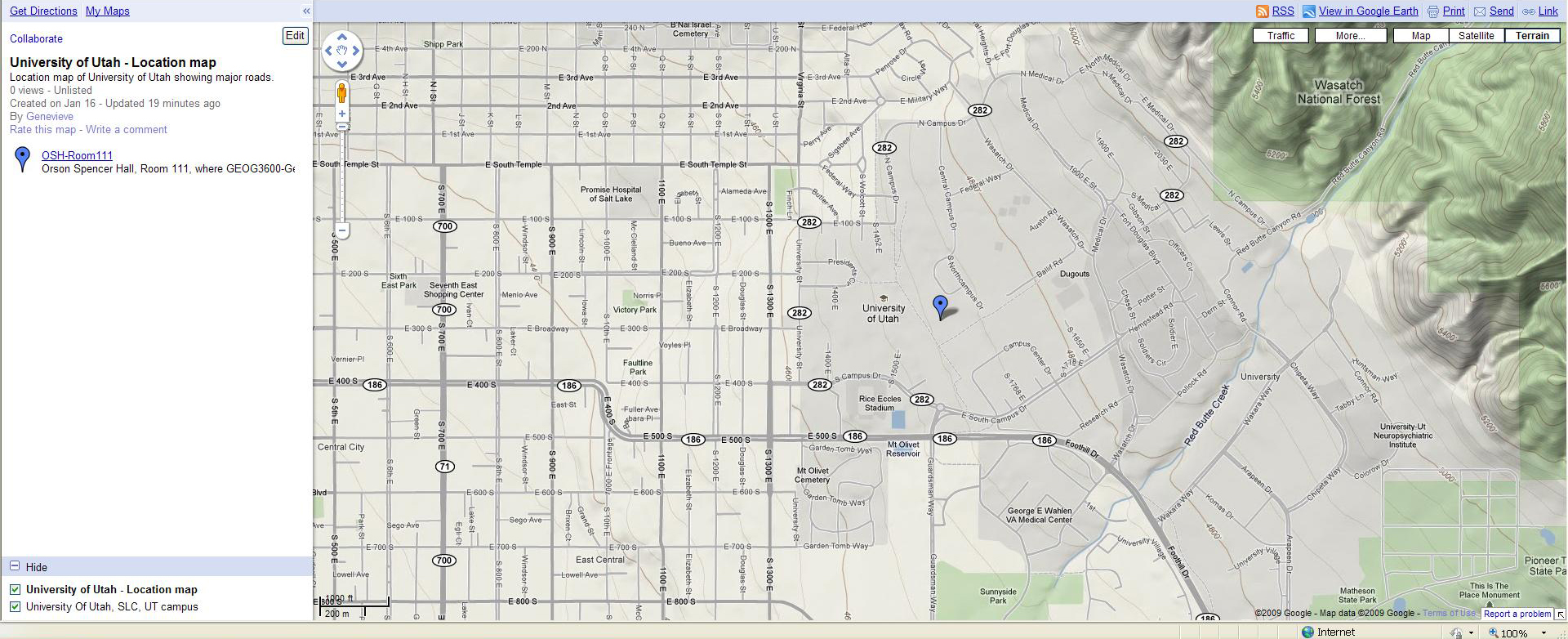
A01f-Location-GoogleMaps
NEXT ---
the assignment.
(a) Cover sheet for LOCATION
(b) five or more maps showing location
STEP BY STEP MARCH THROUGH ONE WAY TO COMPLETE THE ASSIGNMENT
Use the COVER SHEET TEMPLATE. It becomes your file
“A01a-Location-CoverPage” HTML format; or .doc document to download
This cover page is where you can discuss the maps that follow.
I don’t expect you to be able to link your maps to this file. It’s just fine to
open it, work on it, and then save it as a .doc file. If you’ve been clear in
your text write up, it will not be difficult to link your files to your text.
NOTE: you can go as wild as you want beyond what is expected.
At minimum … fill out the cover page. At maximum… who knows? Link to the
universe!
SAVE YOUR WORK TO YOUR COMPUTER OR YOUR OWN MEMORY STICK OR
YOUR OWN FILES>
Files should be able to be opened by standard software. I
suggest JPG format or PDF.
AND very LASTLY… Don’t just “do it my way” but here are LINKS
to an example for
LINK UofU-A01a-Location-CoverPage
LINK UofU-A01b-LocationOnEarth
LINK UofU-A01c-LocationOnNorthAmerica
LINK UofU-A01d-LocationInConterminousUSA
LINK UofU-A01e-Location-GoogleEarth
LINK U0fU-A01f-Location-GoogleMaps
How did I do this homework exercise?
I went to a few of my geography-favorite sites: Google Earth and the USGS and the National Geographic.
You have lots of freedom. I hope by the end of the course you’ll have explored these three sites and more.
GOOGLE EARTH APPROACH –
Here’s what I did.
Open Google Earth (download free software if you don’t have it already). It’s on computers in Marriott Library.
The way I set up Google Earth on my computer (and you don’t have to do it my way) is, under VIEW
Checked: Toolbar; Sidebar; Status Bar; Overview Map, Water surface. For “Show Navigation” I check “always”
I flew to 84112 because I knew that was the zip code for the
UofU. I could have entered and address, and probably just the name “
I de-selected all the layers and places shown on the screen, meaning, I unchecked all those boxes.
Then I checked the
Then I put a “bookmark” on Orson Spencer Hall. How? There are more than one way to do this. This is what I did… and, note, I’m not saying my way is the best or most efficient, just how I did it. I went to the left-side menu bars, and clicked under “Places” on “My Places”. Then I clicked on the thumbtack image along the top menu bar, the one above the image. Then I moved the thumbtack to OSH111, filled in the info on the popup screen for the location, and thought “that was slick.” I didn’t want the popup window to keep showing so I closed it (clicked on x in upper right corner).
Then I thought… what would look nifty as a way to show
I zoomed way way out using the zoom lever way on the right side of the image, toward the top. I held down the “minus” sign and zoomed out. This lost my place marks.
I wanted to show how large the
Next… LocationOnNorthAmerica. I zoomed in a ways, took out the weather and the stars (unchecked the boxes on left-side menus)
I want to show latitude and longitude, so I will save two
images, one with geographic grid lines checked and one without. Remember, you
can add maps to your atlas as you like. This will change your cover page for
the section (A01-Location… ) and, eventually, your
Table of Contents I wanted to show
coastlines, countries, and “1st level Admin Borders (counties) but
they wouldn’t show at the global scale. Also, the placemarks
for
(1) LocationOnNorthAmerica-GeogGrids.jpg with grids (menu way toward the top of page, just under “Google Earth” go to “view” then “grid”… and I set options to degrees rather than to UTM..
(2) LocationOnNorthAmerica-01.jpg. . If I don’t tinker with that
one, for example to label
Next… LocationInConterminousUSA: I
zoom in farther… I check the boxes at left to show Borders: International
borders, country names, 1st level borders, 1st level
names… but I am frustrated by scale. If I’m zoomed out enough to see all of the
conterminous US, I don’t get all the states’ names. So…
I’ll save two images. LocationInConterminousUS with
the UofU and
Next… LocationInGoogleEarth: there’s lots of choice here. I’ll save a couple versions.
LocationInGoogleEarth-GeogGrid – because I wanted to show ways to locate a place: by geographic grid and by transportation routes. I’d wanted county lines but Google Earth wouldn’t show county lines at the regional scale that showed the entire state.
LocationInGoogleEarth-UofU-InSLCo
shows a satellite view of features in and around around
LocationInGoogleEarth-UofU-InSLCity and I added a couple placemarks
Next… LocationInGoogleMaps -- This was easy to create and difficult to save. Its advantage is that so many people use GoogleMaps because it shows streets.
From the screen that I saved into “LocationInGoogleEarth-InSLCity” – I’ll shift into GoogleMaps… (go to “File” in horizontal menu just below “Google Earth” click on “View in Google Maps” and, voila, I have a street map showing campus. I like the terrain view, particularly since I’ve made so many satellite imagery views using Google Earth. I save the Google Maps view as Location-InGoogleMaps-SLCity.... I followed the LINK to complete instructions on how to same a map from GoogleMaps and saved a map in "My Maps." Then to save it as a file for the atlas, became frustrated by not finding a way to save it as a jpg. What I did was hit "Print Screen" on my key board, pasted the image of the screen into "Paint" a Microsoft Accessories program, cropped the map part of the image, and added the jpg to my atlas. I'm sure there are easier ways, but this worked okay.
SO… that’s one way to do the homework using Google Earth and then Google Maps. There are several other ways to make the maps.
For example:
Go to USGS National Atlas (“google” it) http://www.nationalatlas.gov/
http://www.nationalatlas.gov/printable/reference.html
for a series of outline maps of the
http://www.nationalatlas.gov/asp/popups.asp?imgFile=../printable/images/preview/reference/pagena6.gif&imgw=588&imgh=450
shows
http://www.nationalatlas.gov/asp/popups.asp?imgFile=../printable/images/preview/outline/states.gif&imgw=588&imgh=450
for states of conterminous
http://www.nationalatlas.gov/asp/popups.asp?imgFile=../printable/images/preview/outline/states(bright).gif&imgw=588&imgh=450 states in bright colors
http://www.nationalatlas.gov/asp/popups.asp?imgFile=../printable/images/preview/outline/states(u).gif&imgw=588&imgh=450 states with no labels
http://www.nationalatlas.gov/asp/popups.asp?imgFile=../printable/images/preview/reference/pagegen_ut.gif&imgw=588&imgh=450
reference map for
http://www.nationalatlas.gov/asp/popups.asp?imgFile=../printable/images/preview/counties/pagecnty_ut2.gif&imgw=588&imgh=450
map of
http://www.nationalatlas.gov/asp/popups.asp?imgFile=../printable/images/preview/rivers/pagehyd_ut3.gif&imgw=588&imgh=450 map of
Another approach is via National Geographic Ed Network -- http://www.ngsednet.org/index.cfm
http://www.ngsednet.org/community/index.cfm?community_id=258 takes you to Utah Geographic Alliance
http://maps.nationalgeographic.com/maps for their maps
http://maps.nationalgeographic.com/maps/map-machine#s=r&c=43.74999999999998, -99.71000000000001&z=4 to search for a place
If you download the National Geographic’s 3D module (Microsoft), then you can see building in 3-D – such as Location-NtlGeog-3D-OSH111.jpg
http://maps.nationalgeographic.com/maps/map-machine#s=h&c=40.76321376515756, -111.84464456484585&z=19
And there are others. For example… simply “google”
Earth from space --- follow some links to get to NASA (so no copyright problems) http://visibleearth.nasa.gov/view_set.php?categoryID=2364
The “blue marble” http://veimages.gsfc.nasa.gov//2429/globe_west_540.jpg might work well for a school atlas.
In conclusion.
The purpose of the ATLAS for SCHOOLS project is to enhance your understanding of Geography of Utah by asking you to apply concepts to a specific place, the school you’ve chosen.
Your atlas will not look like any one else’s atlas, although, at minimum, it will have the same map themes.
With respect to the first homework session for your atlas:
You should have learned some things about
LINK to the final version of my modeling of your homework assignment LINK




.gif&imgw=588&imgh=450)
.gif&imgw=588&imgh=450)


